Complete Guide to Testing FCM Push Notifications
Learn how to test Firebase Cloud Messaging (FCM) HTTP v1 push notifications end-to-end using TestFCM.in — from project setup to delivery on real devices.
Last updated: May 2026
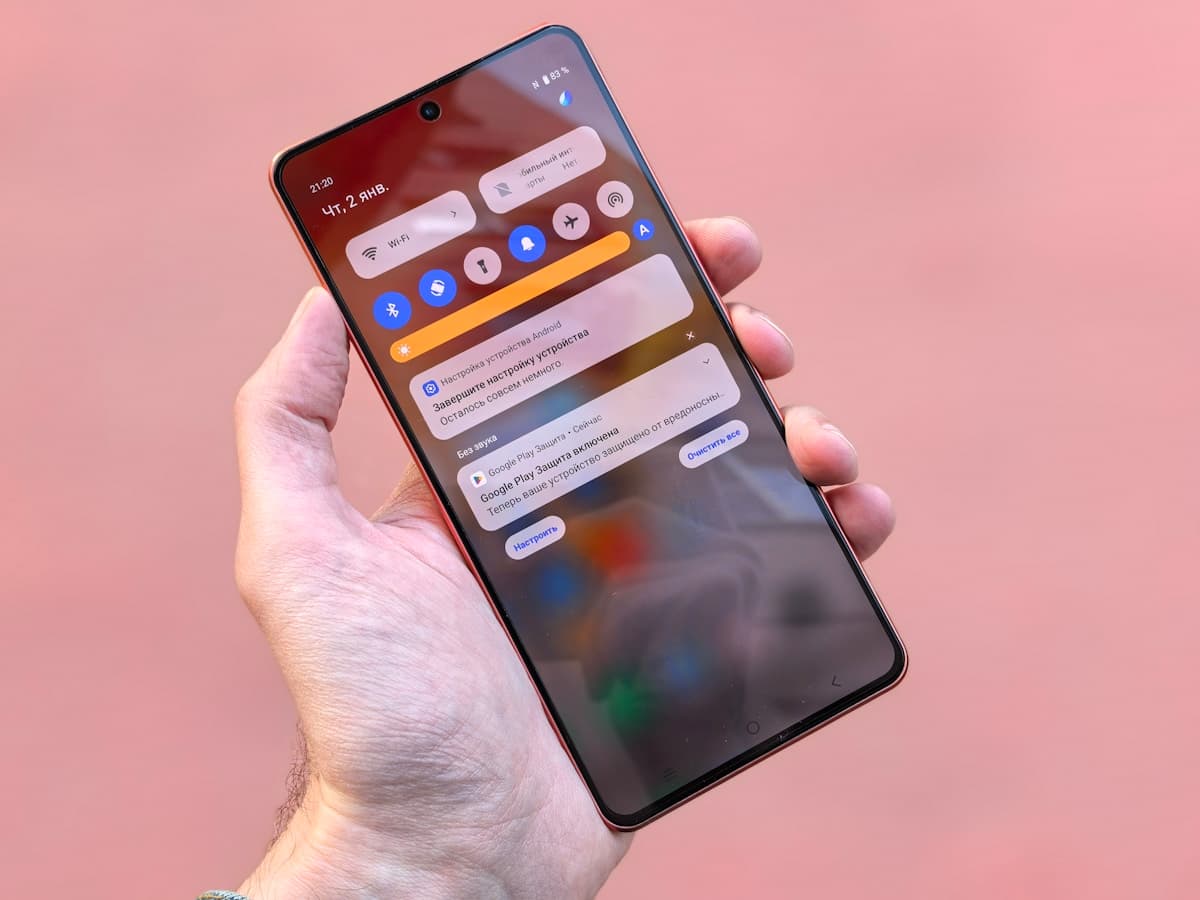
Firebase Cloud Messaging (FCM) is Google's cross-platform messaging service for sending push notifications to Android, iOS, and web clients. Since Google deprecated the Legacy HTTP API, all new integrations must use the FCM HTTP v1 API, which uses OAuth 2.0 access tokens instead of server keys.
TestFCM.in is a free online tool that lets mobile developers send test notifications without building a backend. This guide walks through the entire workflow so you can verify that your app receives pushes correctly before shipping to production.
What you need before you start
- A Firebase project with Cloud Messaging enabled
- Google Cloud SDK (gcloud) installed for OAuth tokens, or another way to obtain a short-lived access token
- A physical device or emulator with your app installed and FCM configured
- The FCM registration token (device token) from your app logs
Step 1: Confirm your Firebase project
Open the Firebase Console and select your project. Under Project settings → General, copy the Project ID — not the project number. The Project ID is used in the HTTP v1 endpoint URL: https://fcm.googleapis.com/v1/projects/{project-id}/messages:send.
Ensure Cloud Messaging is enabled. For Android, your app needs google-services.json. For iOS, upload your APNs key or certificate. For web, configure the Firebase web app and service worker if you use background messages.

Step 2: Generate an OAuth access token
HTTP v1 requires a Bearer token from Google OAuth — typically from the gcloud CLI. Run gcloud auth login, then gcloud auth application-default login, then gcloud auth print-access-token. The token usually starts with ya29. and expires after about an hour.
Important: never paste your FCM device token (often starting with APA91) into the Access Token field. The device token identifies the recipient; the OAuth token authorizes your server (or TestFCM proxy) to call Google's API.

gcloud auth login
gcloud auth application-default login
gcloud auth print-access-token
Step 3: Get the device registration token
In your app, call FirebaseMessaging.getToken() (Android/Kotlin), Messaging.messaging().token (iOS/Swift), or getToken() from the Firebase JS SDK. Log the token during development and paste it into TestFCM's Device Token field.
Tokens can change when the app is reinstalled, app data is cleared, or FCM rotates keys. If a send succeeds but nothing appears on the device, generate a fresh token and try again.

Step 4: Send a test notification on TestFCM.in
Fill in Project ID, Access Token, Device Token, Title, and Message on the home page. Click Send Notification. TestFCM forwards the request through a server-side proxy to avoid browser CORS restrictions.
Optional fields include click action URL, image URL, and a JSON data payload. All values in the data object must be strings for HTTP v1 — TestFCM converts them automatically.

Step 5: Verify delivery
- Foreground: your app may show an in-app handler instead of a system notification
- Background: check the notification tray (Android) or Notification Center (iOS)
- Data-only messages: handled in onMessageReceived / application:didReceiveRemoteNotification
- Check Logcat or Xcode console for FCM callbacks and errors
Saving and re-testing requests
Use Save Locally to store a named request in your browser. Sign in with Google to sync saved requests across devices via Firebase. Legacy saves that used Server Keys cannot be resent — re-save with HTTP v1 credentials if you see a "Re-save required" badge.
Continue with our complete testing guide or open the FCM tester to send a notification now.
Ready to test? Open the FCM tester · Browse all guides